
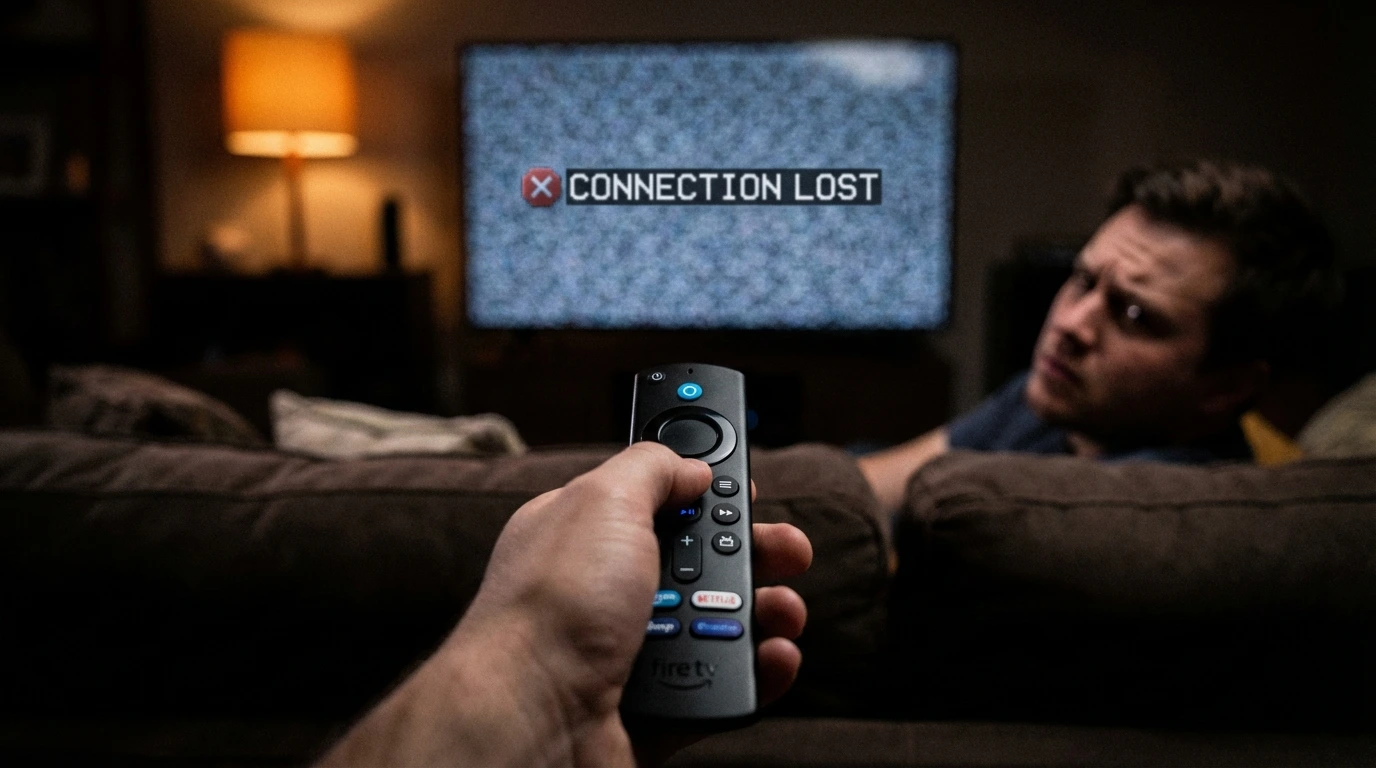
Settling onto the couch, popcorn ready for a Netflix marathon, you reach for the remote. You hit “Select,” expecting the show to start, but the TV remains stubbornly blank. Repeated, harder presses and even a frantic wave yield the same result: absolute silence. Panic sets in. Is the battery dead? Is the Fire TV Stick broken? Did someone spill soda on it?
If you are currently searching Google for “why does my Firestick remote not work?” rest assured that you are not the only one. This is a very frequent problem for Fire TV users. The good news is that in about 90% of cases, you can resolve the issue yourself in less than five minutes, and it won’t cost you anything.
Before you rush out to purchase a new remote (or, even worse, an entirely new Fire TV Stick), take a moment to consult this comprehensive troubleshooting guide. We will guide you through various solutions, including battery tips and the hidden “Reset Codes” that Amazon keeps under wraps.
And if it turns out your remote is truly gone, we will help you decide if it’s time to upgrade to the faster, smarter Amazon Fire TV Stick 4K Plus.
Let’s get your TV back in action.
The “Obvious” Fix: It’s Always the Batteries (Almost)
I know, I know. You probably already checked this. But bear with me.
The Amazon Fire TV remote operates using Bluetooth technology, which is a significant departure from the traditional Infrared (IR) systems that older TV remotes typically rely on. This modern approach means that the remote is continuously transmitting signals, which can lead to a quicker depletion of battery life than you might anticipate. As a result, even if you installed fresh batteries just last month, there’s a possibility that they could be completely drained by today. It’s important to keep an eye on battery levels to ensure uninterrupted usage of your Fire TV Stick.
The “Spin” Trick
Try this simple fix before heading out to buy new batteries: Remove the back cover and rotate the batteries within their slots. A common issue is a thin layer of oxidation on the contacts; spinning the batteries can scrape this off, restoring the electrical connection.
Don’t Mix and Match
Are you using one Duracell and one generic brand? Or one old battery and one new one?
- The Problem: Mixing batteries causes voltage irregularities. The remote might turn on but fail to send the strong Bluetooth signal needed for pairing.
- The Fix: Always use a fresh pair of AAA Alkaline batteries from the same brand. Avoid rechargeable batteries in Fire TV Stick remotes as they operate at a slightly lower voltage (1.2V vs 1.5V), which can cause connection drops.
The “Pairing” Problem: Re-Syncing Your Remote
If fresh batteries didn’t work, your remote might have simply “forgotten” your Firestick. This often happens after a software update or if the device was unplugged abruptly.
You need to force them to become friends again.
How to Force Pair Your Firestick Remote:
- Turn on your TV and make sure the Firestick is powered up (you should see the Home screen, even if you can’t move the cursor).
- Hold the remote within 10 feet (3 meters) of the Firestick.
- Press and hold the Home Button (the house icon) for at least 10-15 seconds.
- Watch the Light: Look at the small LED at the top of the remote.
- Blinking Blue: It is trying to pair.
- Rapid Blue Flash: Successfully paired.
- No Light: It’s not sending a signal (Check batteries again).
If you see a message on your TV screen saying “New Remote Connected,” congratulations! You fixed it.
The “Secret” Reset Code (The Magic Fix)
If re-pairing failed, you likely have a software glitch inside the remote itself. Just like your phone sometimes needs a restart, your remote does too.
Amazon has a specific button combination that performs a “Factory Reset” on the remote. This clears its internal memory and forces it to start fresh.
Warning: This is a bit like playing a video game combo—you have to be precise.
Step-by-Step Remote Reset Guide:
- Unplug your Fire TV Stick from the power outlet and wait for 60 seconds.
- Grab the remote. Press and hold these three buttons simultaneously:
- Left (on the ring)
- Menu (the three lines)
- Back (the curved arrow)
- Hold all three down for 12 seconds. (Count slowly!).
- Release the buttons and wait 5 seconds.
- Remove the batteries from the remote.
- Plug your Fire TV Stick back in and wait for the Home screen to load.
- Put the batteries back into the remote.
- Press the Home Button again for 10 seconds to pair.
This method solves the “why does my firestick remote not work” query for about 70% of users who have “bricked” remotes.
Interference: The Hidden Enemy
Remember how we said the remote uses Bluetooth? Bluetooth operates on the 2.4GHz frequency—the exact same frequency as your Wi-Fi router, your microwave, and your baby monitor.
If your Firestick is plugged directly into the back of your TV, it is sandwiched between a metal plate (the TV) and a wall. This can block the signal.
The HDMI Extender Solution
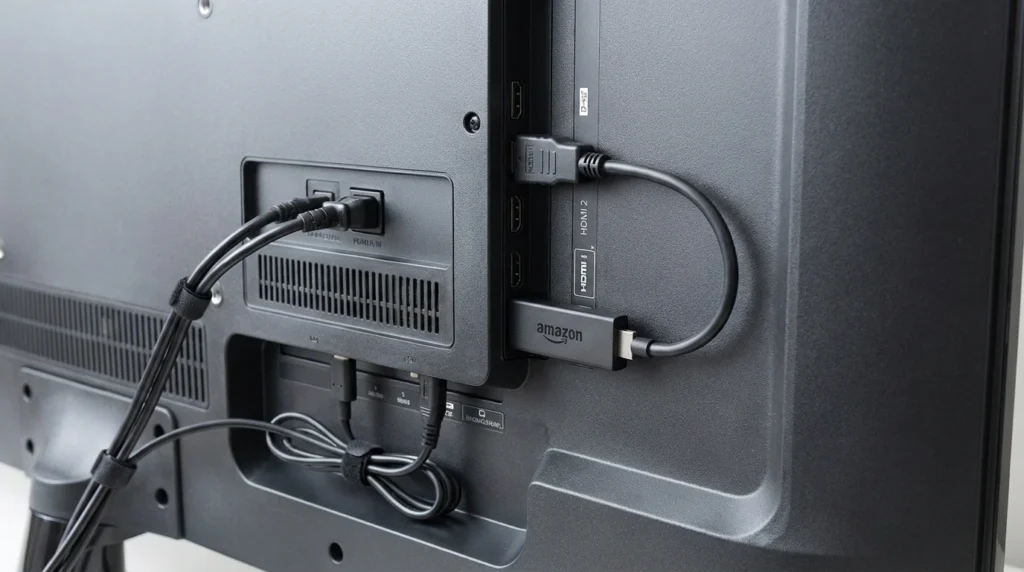
When you bought your Firestick, there was a short, 3-inch HDMI cable in the box. Did you throw it away?
- Find it (or buy one): That is not just an extender; it acts as an antenna booster.
- Why use it: Moving the stick even 2 inches away from the back of the TV dramatically improves Bluetooth reception and reduces Wi-Fi interference.
Check Your Router
Is your Wi-Fi router sitting right next to the TV? Try moving it a few feet away. Strong Wi-Fi signals can drown out the weaker Bluetooth signal from the remote.
The “App” Workaround (Emergency Backup)
Let’s say you have tried everything above, and the remote is dead. It’s 9 PM, and you just want to watch your show. Do you have to drive to the store?
No. You have a backup remote in your pocket.
How to Use Your Phone as a Fire TV Remote:
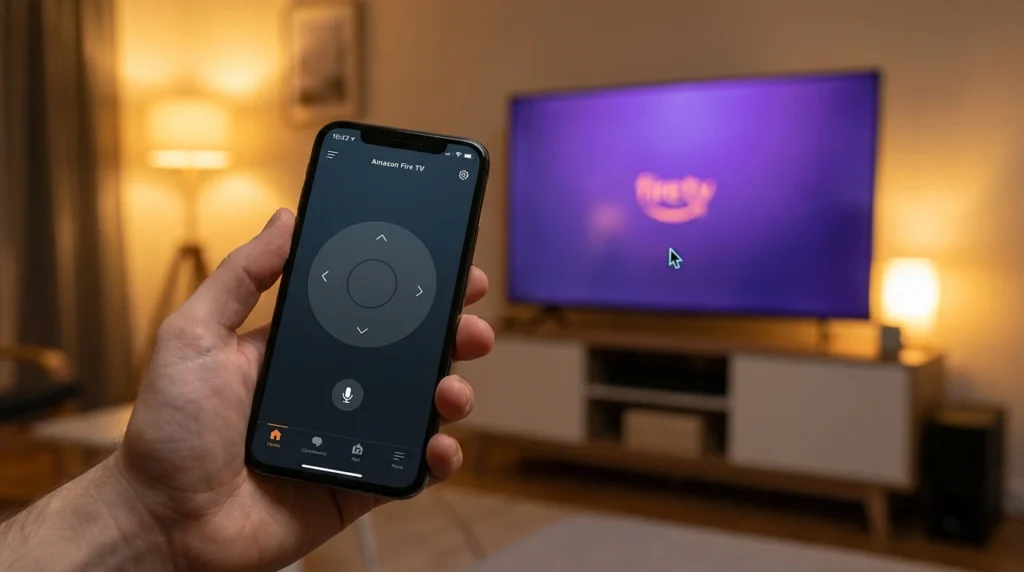
- Download the Amazon Fire TV App (available on iOS and Android).
- Connect your phone to the same Wi-Fi network as your Firestick.
- Open the app and select your device (e.g., “John’s Fire TV”).
- A 4-digit code will appear on your TV screen. Enter it into your phone.
Boom. Your phone screen is now a trackpad. You can swipe, click, and even use the keyboard to type passwords (which is actually faster than using the real remote!).
- Pro Tip: You can use the app to navigate to the Settings > Controllers & Bluetooth Devices menu on your Firestick to troubleshoot or add a new remote later.
Hardware Damage: Is it Clean?
If you have kids or pets, your remote has likely been dropped, chewed on, or covered in sticky fingers.
The “Cleaning” Check
Sometimes, dirt or spilled soda gets under the rubber buttons, preventing them from making contact with the circuit board.
- The Fix: Take a cotton swab dipped in 70% Isopropyl Alcohol. Gently clean around the buttons and the battery contacts. (For a deep dive on how to clean gadgets safely, keep an eye out for our upcoming guide).
Check for Internal Rattling
Shake the remote. Do you hear something rattling inside? If a plastic clip or a soldered component has broken off due to a drop, no amount of battery swapping will fix it. It is physically broken.
When to Upgrade: Is It Time for a New Firestick?
If you have gone through all 6 steps and you are still asking, “Why does my firestick remote not work?” you have two options:
- Buy a Replacement Remote: An official Alexa Voice Remote costs around $29.
- Buy a Whole New Firestick: A brand new Fire TV Stick often costs between $39 and $49.
Do the Math: For just $10-$20 more than the price of a remote, you can get a completely new device with a faster processor, a fresh remote, and a warranty.
If you are using an older Firestick (non-4K), this is the perfect excuse to upgrade. The new [Amazon Fire TV Stick 4K Plus] comes with an enhanced remote, Wi-Fi 6, and AI-powered search that make finding movies easier than ever.
Read our full review here: [Amazon Fire TV Stick 4K Plus Review: Is the New AI Model Worth It?]
Frequently Asked Questions (FAQs)
Q: Why is my Fire TV Stick remote blinking orange? A: An orange blinking light usually means the remote is in “Discovery Mode.” It cannot find the Fire TV Stick. This often happens if the Fire TV Stick is powered off or too far away. Restart your Fire TV Stick and try pairing again.
Q: Can I use a universal remote with Fire TV Stick? A: Most standard IR universal remotes won’t work because Firestick uses Bluetooth. However, higher-end remotes like the Logitech Harmony (with a Hub) or TVs with HDMI-CEC enabled can control the Fire TV Stick.
Q: How do I enable HDMI-CEC to use my TV remote? A: Go to Settings > Display & Sounds > HDMI CEC Device Control and turn it ON. This allows your regular TV remote to control the Firestick’s basic menus!
Q: Why does the volume work but not the navigation? A: The volume and power buttons use Infrared (IR) to talk to your TV, while the navigation buttons use Bluetooth to talk to the Firestick. If volume works but navigation doesn’t, your batteries are likely strong enough for IR but too weak for Bluetooth. Change the batteries.
Conclusion
A broken remote is frustrating, but it doesn’t have to ruin your movie night. By following these steps—checking batteries, performing the “Secret Reset,” and clearing interference—you can solve the mystery of “why does my firestick remote not work” almost every time.
And remember, if the hardware is truly dead, don’t throw good money after bad. Use the Fire TV App as a temporary fix, and consider upgrading to the Fire TV Stick 4K Plus to future-proof your setup for the next few years.
Did these fixes work for you? Let us know in the comments below!
1 thought on “Why Does My Firestick Remote Not Work? Problem Resolved!”