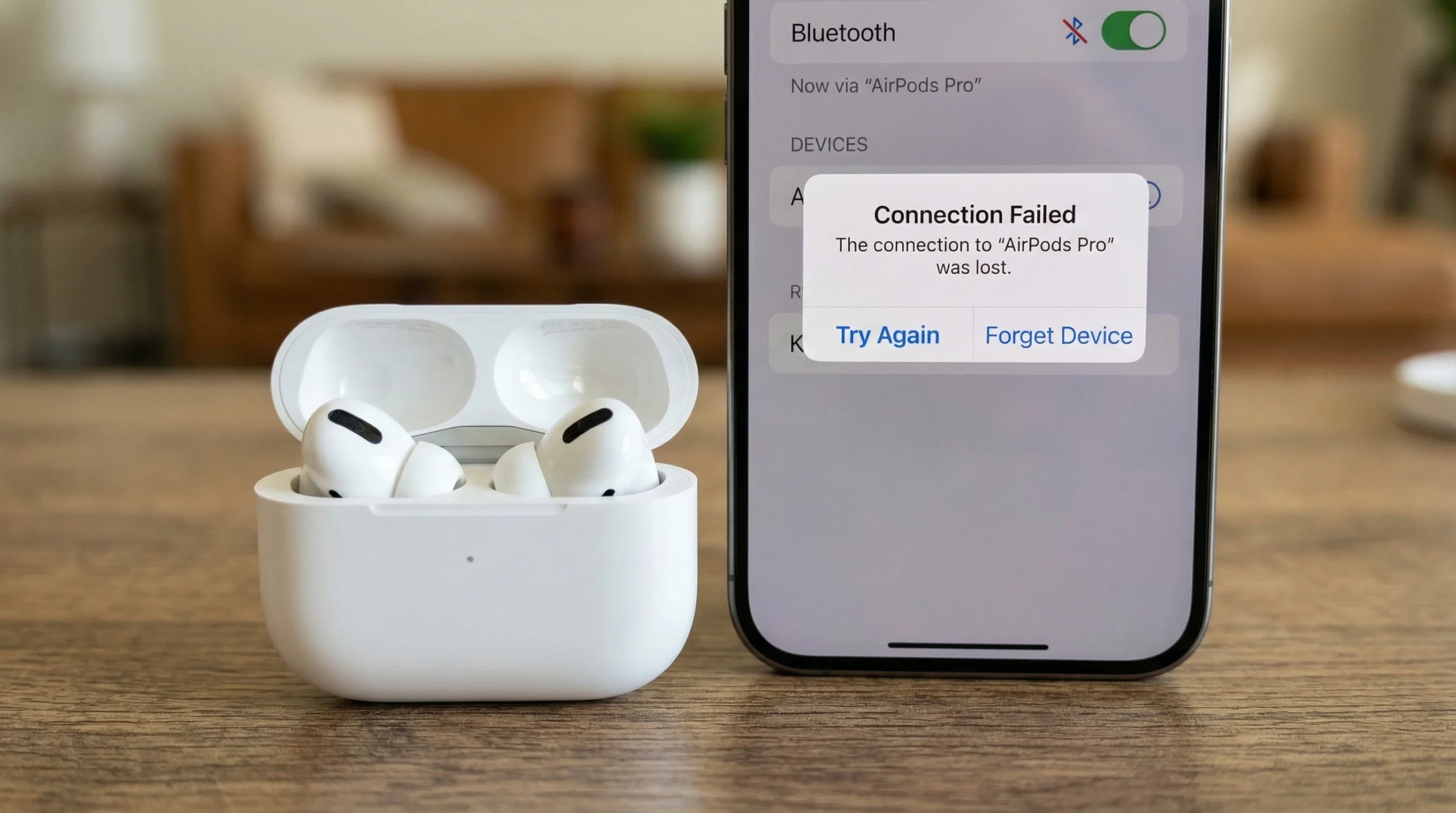
Quick Answer
If your AirPods Pro 3 are not connecting to your iPhone, start with these three steps: toggle Bluetooth off and on, place your AirPods back in the case and reopen it, and restart your iPhone. These three fixes solve over 80% of connection problems in under two minutes. If those do not work, read on — we cover 10 proven fixes below.
You just picked up your AirPods Pro 3, put them in your ears, and nothing happens. No connection sound, no audio, no response. It is one of the most frustrating moments in tech — especially when you paid a premium price for what should be a seamless experience.
Fortunately, AirPods Pro 3 connection problems almost always have a straightforward fix. In this guide, we walk you through every proven solution — from the simplest 10-second fixes to deeper resets — so you can get back to listening as quickly as possible. Moreover, we explain exactly why each problem occurs, so you can prevent it from recurring.
Table of Contents:
- Why AirPods Pro 3 Fail to Connect
- Quick Fixes to Try First (Under 2 Minutes)
- 10 Detailed Fixes — Step by Step
- Specific Scenarios and Solutions
- How to Prevent Connection Problems
- Frequently Asked Questions
Why AirPods Pro 3 Fail to Connect to iPhone
Before jumping into the fixes, it helps to understand what actually causes AirPods Pro 3 connection issues. In most cases, one of these six reasons is responsible:
Bluetooth glitch
A temporary software error stops the Bluetooth stack from pairing correctly.
Outdated firmware
Old AirPods firmware can conflict with newer iOS versions and cause drops.
Too many paired devices
AirPods try to connect to the last device they used — not always your iPhone.
Corrupted pairing data
The saved connection data gets corrupted, preventing a clean handshake.
iOS software bug
A recent iOS update sometimes introduces Bluetooth bugs that affect AirPods.
Low battery
AirPods Pro 3 are below 10% charge, and sometimes refuse to pair until recharged.
In addition to these, physical issues like earwax buildup on sensors or a dirty charging case can also cause intermittent connection failures. We cover those scenarios further below.
Quick Fixes to Try First
Before running through the full list, try these three fast fixes in order. They solve the majority of AirPods Pro 3 connection problems instantly:
- Toggle Bluetooth off and back on. Go to Settings → Bluetooth, turn it off, wait 5 seconds, turn it back on. Then open your AirPods case near your iPhone.
- Put AirPods back in the case and reopen. Close the lid, wait 10 seconds, then reopen. This forces the AirPods to restart and search for a new connection.
- Restart your iPhone. Hold the side button + volume button, slide to power off, wait 30 seconds, then turn it back on.
Still not working? If the three quick fixes above did not solve your problem, continue to the detailed fixes below. Each one targets a specific cause, so work through them in order from top to bottom.
10 Detailed Fixes — Step by Step
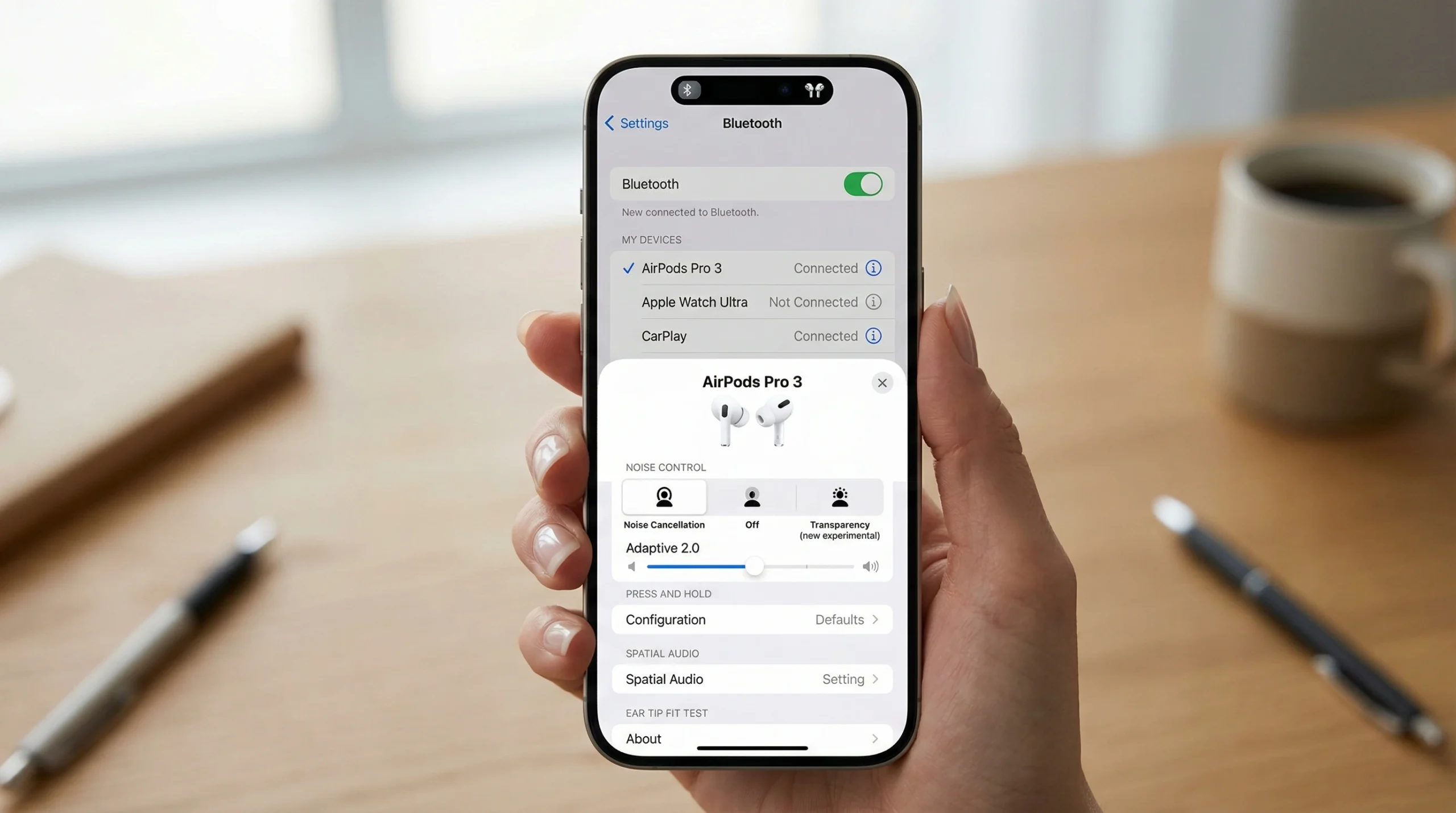
Toggle Bluetooth Off and On Easily
This is the single most effective fix for temporary Bluetooth glitches. Turning Bluetooth off completely clears the active connection cache, and turning it back on forces your iPhone to search for nearby devices fresh.
- Open Settings on your iPhone
- Tap Bluetooth
- Toggle the switch to Off
- Wait 10 seconds
- Toggle Bluetooth back to On
- Open your AirPods Pro 3 case near your iPhone — the connection should appear automatically.
Restart Your iPhone Easily.
A full restart clears iOS memory and resets all background services, including Bluetooth. Many users find that this solves persistent connection issues that a simple toggle cannot fix.
- Press and hold the Side button + Volume Down button simultaneously
- Slide the Power Off slider
- Wait 30 seconds for the iPhone to shut down fully
- Press the Side button to turn it back on
- Once unlocked, open your AirPods Pro 3 case near the iPhone
Charge Your AirPods Pro 3 Easily
AirPods Pro 3 below 10% battery, sometimes refuse to pair or drop connections unexpectedly. Before trying anything else, check the battery level and charge if needed.
- Place both AirPods inside the charging case
- Connect the case to a charger via USB-C cable
- Wait at least 15–20 minutes
- Open the case near your iPhone — the connection prompt should appear
Tip: Open the case next to your iPhone to see the battery level pop-up. If both AirPods show below 20%, charge them fully before testing the connection again.
Select AirPods Pro 3 Manually in Bluetooth Settings Easy
Sometimes AirPods Pro 3 connect to a nearby Mac, iPad, or another iPhone instead of yours. This happens because they remember the last device they paired with. In this case, manually selecting them from your iPhone’s Bluetooth list forces the switch.
- Go to Settings → Bluetooth
- Look for AirPods Pro 3 under “My Devices”
- Tap on them — if status shows “Not Connected”, tap to connect
- If they do not appear, open the AirPods case and hold it near your iPhone
Disconnect AirPods from Other Apple Devices Easily
AirPods Pro 3 use Automatic Switching to move between your Apple devices. However, this sometimes causes them to stay locked to your Mac or iPad. As a result, your iPhone cannot grab the connection. The fix is straightforward — disconnect from the other device first.
- On your Mac: Click the Bluetooth icon in the menu bar → find AirPods Pro 3 → click Disconnect.
- On your iPad: Go to Settings → Bluetooth → tap the AirPods Pro 3 info icon → tap Disconnect.
- Once disconnected from the other device, open the case near your iPhone
Note: If you want your iPhone to always take priority, go to Settings → Bluetooth → tap the AirPods Pro 3 info icon → set “Connect to This iPhone” to Automatically.
Forget AirPods and Re-Pair from Scratch Medium
If the saved pairing data is corrupted, no amount of toggling will fix the connection. Therefore, the most reliable solution is to completely remove the AirPods from your iPhone and pair them again as if they were brand new.
- Go to Settings → Bluetooth
- Find AirPods Pro 3 under “My Devices”
- Tap the ⓘ info icon next to them
- Scroll down and tap “Forget This Device” → confirm
- Place both AirPods in the case and keep the lid open
- Press and hold the setup button on the back of the case for 15 seconds until the status light flashes white
- Hold the open case next to your iPhone — the pairing animation appears on screen
- Tap Connect and follow the on-screen prompts
Important: Forgetting your AirPods removes them from all Apple devices linked to your iCloud account. After re-pairing on your iPhone, they reconnect to your other Apple devices automatically through iCloud.
Update Your iPhone to the Latest iOS Easily.
Apple frequently releases iOS updates that fix Bluetooth bugs. If your AirPods Pro 3 stopped connecting after a recent iOS update, a follow-up patch often resolves the issue. Conversely, if you have not updated in a while, an outdated iOS version can also cause conflicts.
- Go to Settings → General → Software Update.
- If an update is available, tap Download and Install
- Once the update completes, reconnect your AirPods Pro 3
Check and Update AirPods Pro 3 Firmware Easily
Just like iOS updates, AirPods Pro 3 firmware updates fix known Bluetooth and connectivity bugs. The firmware updates automatically, but only under specific conditions. If it has not been updated recently, you can trigger it manually.
- Connect your AirPods Pro 3 to your iPhone.
- Go to Settings → Bluetooth → tap ⓘ next to AirPods Pro 3
- Scroll down to check the Firmware Version.
- To force an update: place AirPods in the case, plug the case into power, and keep your iPhone nearby on the same Wi-Fi network.
- Leave them for 30 minutes — the firmware updates silently in the background.
Reset Network Settings on iPhone Medium.
If nothing else works, resetting your iPhone’s network settings clears all Bluetooth, Wi-Fi, and VPN configurations. This is a deeper fix that resolves persistent issues caused by corrupted system-level Bluetooth data. Note that this also removes your saved Wi-Fi passwords, so have those ready.
- Go to Settings → General → Transfer or Reset iPhone
- Tap Reset → Reset Network Settings
- Enter your passcode and confirm
- Your iPhone restarts automatically
- After a restart, go to Settings → Bluetooth and re-pair your AirPods Pro 3
Note: This step removes all saved Wi-Fi passwords and paired Bluetooth devices. Make sure you know your Wi-Fi password before proceeding.
Contact Apple Support or Visit an Apple Store Medium
If you tried all nine fixes above and your AirPods Pro 3 still refuse to connect, the issue is likely hardware-related — a faulty Bluetooth chip, a damaged charging contact, or a defective unit. In this case, contact Apple directly.
- Visit apple.com/support and start a chat or call
- Alternatively, book a Genius Bar appointment at your nearest Apple Store
- If your AirPods Pro 3 are within the 1-year limited warranty or you have AppleCare+, the replacement or repair should cost nothing
Pro Tip: Before your appointment, check if your AirPods are still under warranty by going to appleid.apple.com and checking your device list.
Specific Scenarios and Solutions
Beyond the general fixes above, some users experience very specific connection problems. Here is how to handle each common scenario:
AirPods Pro 3 connect, but no sound comes out
This usually happens when the audio output routes to a different device. To fix it, open Control Centre, tap the AirPlay icon on the Now Playing widget, and select your AirPods Pro 3. Additionally, check that your iPhone volume is not at zero.
AirPods Pro 3 keep disconnecting every few minutes
Intermittent disconnections usually point to either a firmware bug or interference from nearby Wi-Fi networks. First, update your firmware using Fix 8 above. If the problem continues, try switching your iPhone’s Wi-Fi to a 5GHz band instead of 2.4GHz, since 2.4GHz signals can interfere with Bluetooth in crowded areas.
Only one AirPod connects; the other does not.
If only one earbud connects, the other likely has a low battery or dirty charging contact. First, place both in the case and charge for 20 minutes. Next, clean the metal charging contacts on both the AirPods and inside the case using a dry cotton swab. After that, try re-pairing using Fix 6 above.
AirPods Pro 3 do not show up in the Bluetooth list at all
If your AirPods Pro 3 do not appear in the Bluetooth device list, they are either out of range, in a low-battery state, or need a full reset. Try placing them in the case, holding the setup button for 15 seconds until the light flashes white, and then opening the case next to your iPhone. This puts them into pairing mode and forces them to appear.
AirPods Pro 3 not connecting after iOS update.
This is a known issue that Apple typically patches within a few weeks. As a temporary fix, forget the AirPods and re-pair them using Fix 6. In most cases, this restores the connection immediately after an iOS update breaks it.
Quick Reference — Problem to Fix
Use this table to jump straight to the right fix for your specific situation:
| Problem | Best Fix to Try First |
| AirPods not appearing in Bluetooth list | Fix 6 — Forget and Re-Pair |
| AirPods connected, but no audio | Fix 1 — Toggle Bluetooth, then check AirPlay output |
| AirPods keep dropping the connection | Fix 8 — Update firmware |
| Only one AirPod connects | Charge both, then Fix 6 |
| Stopped connecting after iOS update | Fix 7 — Update iOS, then Fix 6 |
| Connecting to Mac instead of iPhone | Fix 5 — Disconnect from other devices |
| Nothing works at all | Fix 9 — Reset Network Settings, then Fix 10 |
How to Prevent AirPods Pro 3 Connection Problems
Once you fix the connection issue, it is worth taking a few simple steps to prevent it from happening again. Most recurring problems trace back to the same avoidable causes.
Keep your iPhone and AirPods firmware up to date.
Apple regularly pushes updates that fix Bluetooth bugs. Keeping both iOS and AirPods firmware current means you benefit from those fixes automatically. Enable automatic iOS updates in Settings → General → Software Update → Automatic Updates.
Set iPhone as the priority connection device
If you use AirPods Pro 3 across multiple Apple devices, go to Settings → Bluetooth → tap ⓘ next to AirPods Pro 3 → Connect to This iPhone → set to Automatically. This ensures your iPhone always grabs the connection first when you open the case.
Clean the charging contacts regularly.
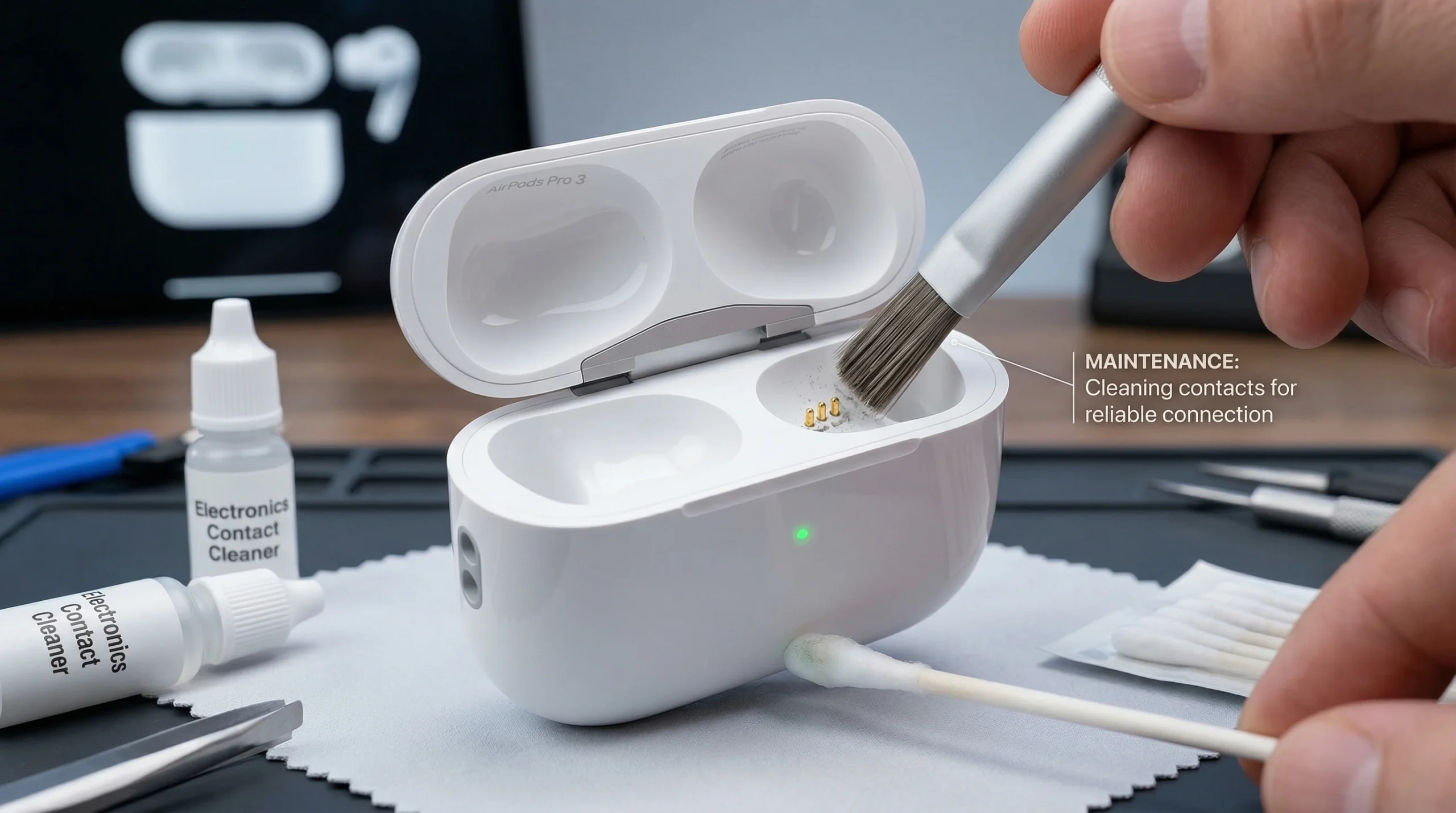
Dirty or corroded charging contacts cause inconsistent charging, which leads to unexpected battery drops and connection failures. Use a dry cotton swab to clean the metal contacts on each AirPod and inside the case once a month.
Avoid leaving AirPods with a very low battery for long periods
Storing AirPods at near-zero battery for extended periods can degrade the battery cells over time. As a result, the earbuds struggle to maintain a stable Bluetooth radio signal. Keep them charged above 20% whenever you store them.
Monthly Maintenance Checklist:
- Check for iOS updates and install if available
- Verify AirPods Pro 3 firmware version in Bluetooth settings
- Clean charging contacts with a dry cotton swab
- Confirm “Connect to This iPhone” is set to Automatically
- Check battery health — charge if below 20% before storing
RELATED ARTICLE:
New AirPods Pro 3 Features You Need to Know
Read our complete hands-on review covering all new features — heart rate monitoring, live translation, hearing aid mode, and more.
Frequently Asked Questions:
Why do my AirPods Pro 3 keep disconnecting from my iPhone?
How do I reset AirPods Pro 3 to factory settings?
My AirPods Pro 3 connect to my Mac but not my iPhone — how do I fix this?
Do AirPods Pro 3 work with non-Apple devices?
How long does it take to pair AirPods Pro 3 with an iPhone?
Will resetting network settings delete my photos or apps?
Can a dirty charging case cause AirPods Pro 3 connection problems?
Final Thoughts:
AirPods Pro 3 connection problems are almost always fixable without visiting an Apple Store. In most cases, toggling Bluetooth, restarting your iPhone, or doing a quick forget-and-re-pair solves the issue within two minutes. For persistent problems, a firmware update or network settings reset handles the rest.
Moreover, a little regular maintenance — cleaning contacts, keeping firmware current, and setting your iPhone as the priority device — prevents most connection issues from ever coming back. Follow the monthly checklist above, and you will rarely deal with this problem again.
If you tried every fix in this guide and nothing works, your unit likely has a hardware defect. Contact Apple Support — if your AirPods Pro 3 are still under warranty, they will replace them at no cost.