
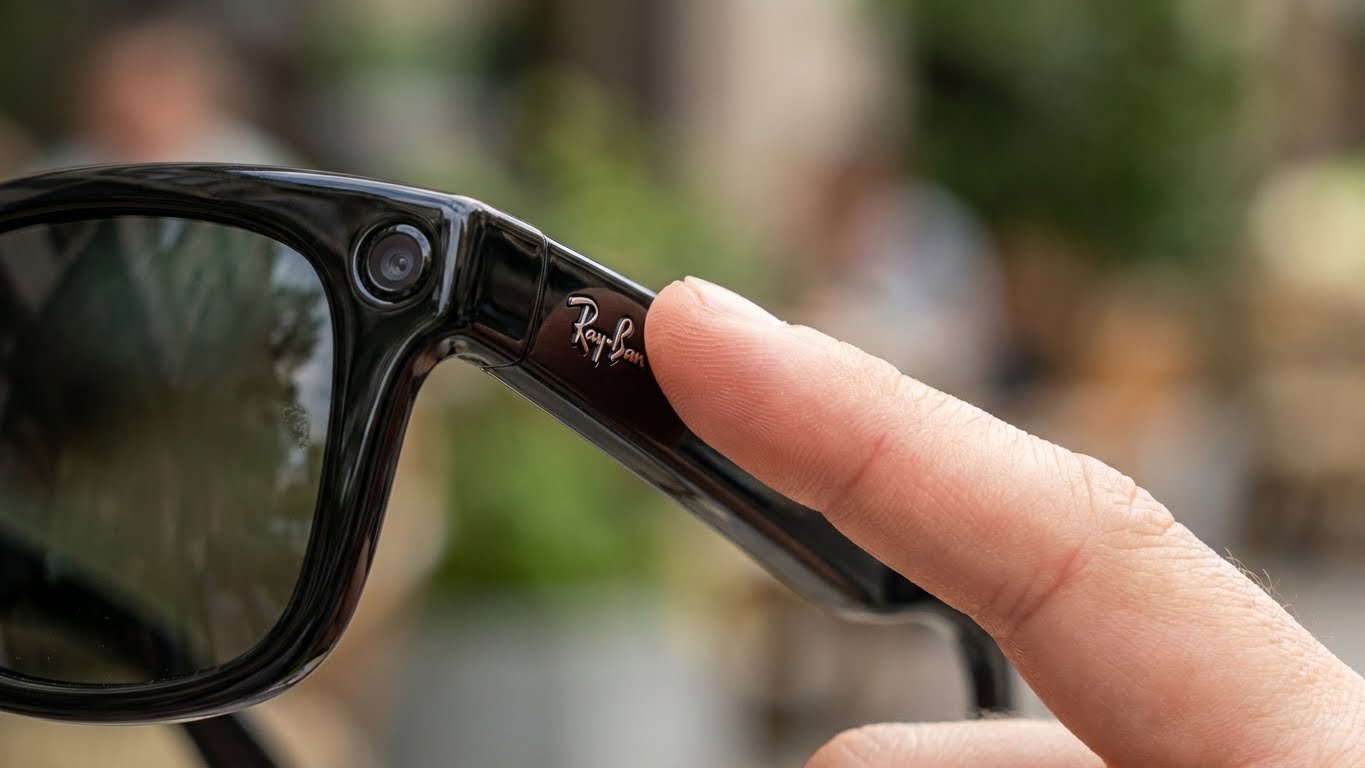
Congratulations on your purchase of the Ray-Ban Meta Smart Glasses! You’ve officially stepped into the future.
However, if you are just using them for quick snapshots or listening to music, you are missing out. These glasses are filled with concealed features, AI functionalities, and shortcuts that many users fail to uncover.
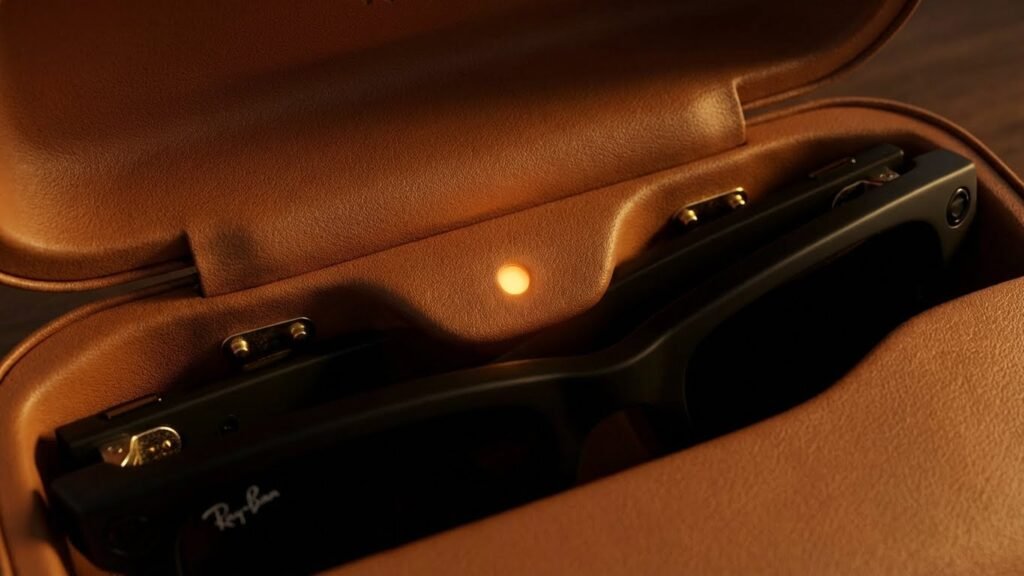
If you make videos and want to improve your POV content, this guide is for you. It is also for anyone curious about the blinking orange light.
In this deep dive, we are sharing our top Ray-Ban Meta tips and Tricks to help you go from a beginner to a “Pro User” in minutes.
1. Master the “Look and Ask” (Multimodal AI)
This is the feature that makes these glasses feel like Iron Man’s JARVIS. Most people are aware that you can interact with the AI, but did you know it can also “see”?
Instead of just asking “What is the weather?”, try using the camera context.
- The Trick: Look at an ingredient in your hand while cooking and say, “Hey Meta, look and tell me what I can cook with this.”
- Pro Tip: You can also use this for translation. Look at a menu in a foreign language and say, “Hey Meta, look and translate this into English.” It reads the text via the camera and whispers the translation in your ear.
2. The “Spotify Tap” Shortcut
Fumbling with your phone to change playlists defeats the purpose of hands-free glasses.
- The Trick: You can configure the touch bar on the side of the glasses to launch Spotify instantly.
- How to do it: Go to the Meta View App > Settings > Gestures. Set “Tap and Hold” to Spotify. Now, whenever you want music, just hold the side of the frame, and it will start playing your recommended mix without you saying a word.
3. Decoding the LED Light Codes (What do they mean?)
One of the most confusing parts of owning these glasses is the tiny LED light inside the frame (facing your eye). It changes color, and it’s trying to tell you something.
- Solid White: The case is fully charged.
- Pulsing White: The glasses are ready to pair (Bluetooth mode).
- Solid Green: The glasses are fully charged.
- Blinking Orange: This is the one everyone searches for. It usually means “Error” or “Low Battery.” If it blinks while in the case, wipe the charging connectors with a clean cloth.
- Red: Battery is critically low/dead.
4. Force a Restart (When things freeze)
Like any computer, sometimes the glasses glitch or refuse to connect to your phone. Don’t panic; you don’t need to return them.
- The Trick: Locate the capture button (on top of the frame) and the power switch (inside the arm).
- Action: Turn the power switch OFF. Then, hold the capture button and turn the power switch ON while keeping the button pressed. Keep holding until the LED flashes. This performs a “Force Restart” and usually fixes connectivity bugs.
5. Adjust the “Listening” Sensitivity
Do you feel like you have to shout “Hey Meta” in public? Or it triggers accidentally when you are talking to friends.
- The Trick: In the app settings, you can adjust the “Wake Word Sensitivity.”
- Recommendation: If you are in a noisy city or windy environment, set it to High. If you use them mostly at home, Medium or Low saves battery and prevents accidental activations.

6. Share Your View on Instagram Live
This is a favorite for influencers. You can stream exactly what you see directly to your followers.
- The Trick: Open Instagram on your phone -> Swipe to “Live” -> Tap the “Glasses” icon.
- Pro Tip: Double-press the capture button on the glasses to toggle between the glasses camera and your phone camera instantly during the stream. It makes for a very dynamic viewing experience.
7. Extend Your Battery Life
The battery lasts about 4 hours, but you can stretch it to 5 or 6 with these tweaks.
- Turn off “Hey Meta”: Continuous listening consumes battery. If you rarely use AI, turn off the wake word. Use the assistant by touching and holding only when needed.
- Lower the Volume: The open-ear speakers consume significantly more power at 80-100% volume. Keeping it at 50% makes a big difference.
8. The “Secret” 60-Second Video Mode
By default, the glasses record 30-second clips. But sometimes, 30 seconds isn’t enough.
- The Trick: Go into the Meta View App settings > Camera > Video Length. You can extend this to 60 seconds.
- Warning: This will fill up your 32GB storage twice as fast, so be sure to offload your clips to your phone regularly.
9. How to discreetly decline a call
Imagine you are in a meeting, and your music stops because a call is coming in. You don’t want to pull out your phone to hang up.
- The Trick: simply double-tap the touch bar on the side of the glasses. This sends the caller to voicemail instantly without you saying a word or looking suspicious.
Read More:
👉 Soundcore Q20i Review
👉 Apple MacBook Air M4
👉 JBL Vibe Beam 2 Review
10. Use Them as Headphones for Your Computer
They aren’t just for phones! You can pair them with your laptop.
- The Trick: Put the glasses in the case, press and hold the button on the back of the case until the blue light pulses (Pairing Mode). On your Mac or PC, select “Ray-Ban Meta” in Bluetooth settings.
- Why do this? It’s great for Zoom calls. The microphone quality is excellent, and you don’t have uncomfortable headphones crushing your ears.
11. Send Photos via WhatsApp/Messenger Hands-Free
You are driving, and you see a beautiful sunset. You want to show your partner.
- The Trick: Say, “Hey Meta, take a photo and send it to [Name] on WhatsApp.”
- Result: The AI will snap the picture and confirm before sending it. No hands required.
12. Apple Music & Amazon Music Support
If you aren’t a Spotify user, don’t worry.
- Update: Recent software updates have added support for Apple Music and Amazon Music. You can configure the “Tap and Hold” gesture for these apps just like Spotify. Make sure your Meta View app is updated to the latest version (2026 version).
13. Geotagging Your Memories
If you travel a lot, this is crucial. Ensure “Location Services” are enabled for the Meta View app.
- Why? When you import photos to your phone, they will have location data. This means you can search “Photos from Paris” in your phone’s gallery later, and your glasses’ photos will show up alongside your phone photos.
14. The “Import” Hack for Faster Transfer
Transferring videos over Bluetooth can be slow.
- The Trick: If you have a lot of 60-second videos, connect your phone to the glasses via Wi-Fi Direct. The app usually prompts this automatically for large files (“Join ‘Ray-Ban’ Wi-Fi Network?”). Always say Yes. It transfers files 10x faster than Bluetooth.
15. Factory Reset (The Last Resort)
If you are selling your glasses or giving them to a friend, you must wipe your data.
- How to do it: With the glasses ON, place them in the case. Press and hold the button on the back of the case for 12 seconds until the LED turns solid red, then white. This erases all photos, videos, and paired connections.
Final Thoughts
The Ray-Ban Meta Smart Glasses are more than just a camera on your face; they are a powerful assistant. By learning these Ray-Ban Meta tips and tricks, you can stop being a passive user. You will start to get real value from your $300 investment.
Did we miss any hidden features? Let us know in the comments below!
1 thought on “15 Ray-Ban Meta Tips and Tricks You Didn’t Know (2026 Guide)”