

Quick Answer: To use live translation on AirPods Pro 3: open the Translate app on your iPhone, select your two languages, tap the microphone, and speak. The translated audio plays directly into your AirPods Pro 3 in real time. No internet required — it runs on the H3 chip on-device.
Travelling abroad used to mean carrying a phrasebook, downloading offline translation apps, or awkwardly holding your phone up to someone’s face. Fortunately, the AirPods Pro 3 change all of that. Thanks to the new live translation feature powered by Apple’s H3 chip, you can now have a natural back-and-forth conversation in two different languages — and hear the translation directly in your ear as it happens.
In this guide, we walk you through exactly how to use live translation on AirPods Pro 3, step by step. Specifically, we cover the initial setup, every available mode, supported languages, practical travel tips, and how to fix the most common problems people run into. By the end, you will know everything you need to get started today.
Table of Contents
- What Is Live Translation on AirPods Pro 3?
- What You Need Before You Start
- How to Set Up Live Translation — Step by Step
- Translation Modes Explained
- Supported Languages
- Pro Tips for Better Translation Accuracy
- Common Problems and How to Fix Them
- Frequently Asked Questions
What Is Live Translation on AirPods Pro 3?
Live translation is one of the headline new features Apple introduced with the AirPods Pro 3. It lets you have real-time, spoken conversations with people who speak a different language — and you hear their words translated directly into your ear as they speak.
Unlike older translation tools that required you to type text or wait several seconds for a response, the AirPods Pro 3 live translation works almost instantly. In fact, the H3 chip inside the earbuds processes language on-device, which means:
- It works without an internet connection in most cases
- Your conversations stay private — nothing goes to a server
- Translation latency is extremely low (under 1 second in most situations)
How it works: The AirPods Pro 3 microphones pick up speech, the H3 chip processes the language locally on your iPhone, and the translated audio plays back into your ears — all in real time.
Apple built this feature on top of the existing Translate app, which has been part of iOS since iOS 14. However, with the AirPods Pro 3, the experience becomes truly hands-free and conversational in a way that simply was not possible before.
What You Need Before You Start
Before you use live translation on AirPods Pro 3, make sure everything is in place. Specifically, you need the following:
| Requirement | Detail |
|---|---|
| AirPods Pro 3 | This feature works exclusively on AirPods Pro 3 — earlier models do not support it |
| iPhone | iPhone 12 or later, running iOS 18 or above |
| Translate App | Apple pre-installs this on all iPhones — no download needed |
| Language Pack | Download your target language offline pack for best performance |
| Firmware | Keep your AirPods Pro 3 firmware up to date — it updates automatically when you charge near your iPhone |
How to check if your AirPods Pro 3 firmware is current
To verify your firmware version, go to Settings → Bluetooth, tap the info icon next to your AirPods Pro 3, and scroll down to see the firmware version. If it looks outdated, place your AirPods in the case, connect the case to power, and keep your iPhone nearby. The update runs automatically in the background.
Important: Although live translation works without internet for downloaded languages, some less common language pairs may still need a Wi-Fi or cellular connection for full accuracy. Therefore, always download language packs in advance when you travel.
How to Set Up Live Translation on AirPods Pro 3 — Step by Step
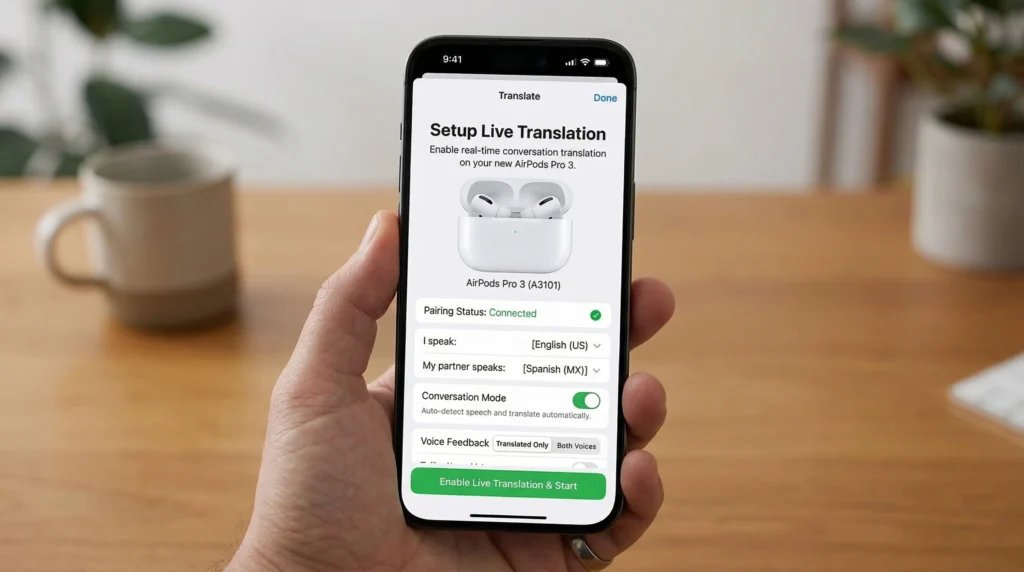
Setting up live translation on AirPods Pro 3 takes less than two minutes. Below is the exact process from start to finish:
Connect your AirPods Pro 3 to your iPhone
Put both earbuds in and confirm the Bluetooth connection. You should see the AirPods Pro 3 listed in your Control Centre or Settings → Bluetooth.
Open the Translate App on your iPhone.
Find the blue Translate app on your home screen. If you cannot find it, simply swipe down and search “Translate” in Spotlight Search.
Select your two languages.
Tap the language buttons at the top of the screen. Choose your language on the left (e.g., English) and the language you want on the right (e.g., French, Spanish, Urdu, Japanese, etc.).
Switch to Conversation Mode
Tap the Conversation tab at the bottom of the Translate app. This is the mode Apple specifically designed for real-time back-and-forth dialogue — exactly what you need with AirPods Pro 3.
Tap the microphone and start speaking.
Tap the microphone button and speak naturally. The app detects when you stop speaking, translates your words, and plays the translation aloud — either through the iPhone speaker for the other person, or into your ears through the AirPods Pro 3.
Turn on Auto Translate for a hands-free experience
Tap the three-dot menu (⋯) in the Translate app and turn on Auto Translate. As a result, the app automatically detects when each person stops speaking and translates without you tapping anything. This makes the whole conversation feel much more natural.
Pro Tip: Once you turn on Auto Translate, place your iPhone face down on a table and simply speak. Your AirPods Pro 3 microphones pick up the conversation, and the translation plays directly into your ears — completely hands-free.
Translation Modes Explained
The AirPods Pro 3 live translation works through the Translate app, which offers three different modes. Understanding each one helps you choose the right setup for your situation.
Conversation Mode (Recommended)
This is the best mode for using live translation on AirPods Pro 3. Both you and the other person speak naturally, and the app automatically detects who speaks which language and translates accordingly. As a result, the translation audio plays into your AirPods Pro 3 so you hear it without ever looking at your phone.
Best for: Restaurants, hotels, shopping, asking for directions, and casual conversations.
One-to-One Mode
In this mode, you hold your iPhone between you and the other person. You speak into one side, and they speak into the other. This works without AirPods, but it also pairs well with AirPods Pro 3, so you hear the translated response privately in your ears.
Best for: Longer conversations, business meetings, situations where both people want to read the text on screen.
Text Input Mode
This is not a live audio mode — instead, you type text and receive a translation. If you turn on text-to-speech, your AirPods Pro 3 will read the translation aloud. This mode is less practical for conversations, but it works well for translating written signs, menus, or documents.
Best for: Reading menus, translating written text, and situations where speaking aloud is not appropriate.
Supported Languages for Live Translation
The AirPods Pro 3 live translation supports a growing list of languages. The following are fully supported with on-device offline translation packs available:
| Language | Offline Pack Available | Quality Rating |
|---|---|---|
| English | ✅ Yes | ⭐⭐⭐⭐⭐ Excellent |
| Spanish | ✅ Yes | ⭐⭐⭐⭐⭐ Excellent |
| French | ✅ Yes | ⭐⭐⭐⭐⭐ Excellent |
| German | ✅ Yes | ⭐⭐⭐⭐⭐ Excellent |
| Italian | ✅ Yes | ⭐⭐⭐⭐⭐ Excellent |
| Portuguese | ✅ Yes | ⭐⭐⭐⭐⭐ Excellent |
| Japanese | ✅ Yes | ⭐⭐⭐⭐ Very Good |
| Mandarin Chinese | ✅ Yes | ⭐⭐⭐⭐ Very Good |
| Korean | ✅ Yes | ⭐⭐⭐⭐ Very Good |
| Arabic | ✅ Yes | ⭐⭐⭐⭐ Very Good |
| Urdu | ✅ Yes | ⭐⭐⭐ Good |
| Hindi | ✅ Yes | ⭐⭐⭐⭐ Very Good |
| Russian | ✅ Yes | ⭐⭐⭐⭐ Very Good |
| Dutch | ✅ Yes | ⭐⭐⭐⭐ Very Good |
| Turkish | ⚠️ Online only | ⭐⭐⭐ Good |
| Polish | ⚠️ Online only | ⭐⭐⭐ Good |
Downloading offline language packs: Go to Settings → General → Language & Region → Translation Languages and download the packs for your destination before you travel. This ensures live translation works even without mobile data.
Pro Tips for Better Translation Accuracy

Getting good results from live translation on AirPods Pro 3 mainly comes down to how you speak and how you set up your environment. Follow these tips to improve accuracy significantly:
Speak at a natural pace — not too fast, not too slow
One of the most common mistakes people make is speaking either too quickly or unnaturally over-enunciating words. Since the H3 chip trains on natural speech patterns, speaking the way you normally would in conversation gives noticeably better accuracy.
Minimise background noise when possible
The AirPods Pro 3 microphones do an excellent job of isolating your voice from noise. However, in very loud environments — busy street markets, loud concerts, construction zones — accuracy can still drop. If possible, step slightly away from the loudest noise source before you start a translation session.
Download offline language packs before you leave home
Even if you have a roaming data plan, cellular signals are often unreliable in rural areas, underground metro stations, or historic buildings with thick walls. For this reason, always download the offline pack before you travel. It guarantees the feature works when you need it most.
Use short, clear sentences.
Live translation works best with direct sentences rather than long run-on thoughts. For example, instead of asking “Could you possibly tell me if there is a reasonably priced restaurant somewhere nearby that serves local food?”, try “Is there a good local restaurant nearby?” Not only is the translation faster, but the accuracy also improves considerably.
Restart the Translate app if accuracy drops.
If you notice translation quality declining during a long session, close and reopen the Translate app. This clears the processing cache and typically restores full accuracy within a few seconds.
Travel Hack: Set your language pair in the Translate app before you land. That way, you step off the plane completely ready — no fumbling with settings while a taxi driver waits.
Common Problems and How to Fix Them
Most issues with AirPods Pro 3 live translation are easy to fix once you know what to look for. Here are the most common problems people report — and exactly how to solve each one:
Problem 1: Translation is not playing through my AirPods Pro 3
Fix: Go to Settings → Bluetooth and confirm your AirPods Pro 3 are the active audio output. Then open Control Centre, tap the AirPlay icon, and select your AirPods Pro 3. The Translate app sends audio to whatever output device you currently select, so this step often resolves the issue immediately.
Problem 2: The translation is very slow or laggy
Fix: This usually means the app uses online translation instead of the offline pack. To fix it, go to Settings → General → Language & Region → Translation Languages and download the offline pack for your language pair. Once you install it, translation speed improves dramatically.
Problem 3: The app detects the wrong language
Fix: Turn off Auto Detect and manually select both languages at the top of the Translate app. Auto Detect works well for common language pairs, but it sometimes confuses similar-sounding languages — for example, Portuguese and Spanish, or Hindi and Urdu.
Problem 4: Microphone not picking up the voice clearly
Fix: Check that neither AirPod tip feels loose or misaligned. A poor seal significantly hurts microphone performance. Try switching to a different ear tip size. Also, make sure your phone case does not cover the bottom microphone on your iPhone.
Problem 5: Live translation does not appear as an option in my region
Fix: Apple’s on-device translation requires the correct device language and region settings. Go to Settings → General → Language & Region and set your iPhone region to a supported country. After you change the region settings, restart your iPhone — this usually resolves the problem right away.
Note: If none of the above fixes work, update your AirPods Pro 3 firmware and iPhone to the latest iOS version. Apple regularly improves translation accuracy and reliability through software updates.
RELATED ARTICLE
AirPods Pro 3 Full Review — Features, Price & Is It Worth It?
Read our complete AirPods Pro 3 review covering all new features, including health tracking, ANC, and hearing aid mode.
Read Full AirPods Pro 3 Review
Frequently Asked Questions
Does live translation on AirPods Pro 3 work without internet?
Can I use live translation on AirPods Pro 3 with Android?
How many languages does AirPods Pro 3 live translation support?
Is the live translation feature accurate enough for real conversations?
Does live translation drain the AirPods Pro 3 battery faster?
Can both people in the conversation hear the translation?
Does live translation work with AirPods Pro 2?
Final Thoughts
Learning how to use live translation on AirPods Pro 3 is genuinely one of the most rewarding things you can do with these earbuds. What used to require a dedicated translation device or an awkward phone-holding session now happens almost invisibly — translated audio flows straight into your ears while you maintain natural eye contact with the person you talk to.
Moreover, the setup takes under two minutes, the accuracy for common languages impresses most users, and the offline functionality means it works reliably even in areas with poor mobile signal. As a result, frequent travellers, international students, or anyone who regularly communicates across language barriers will find the AirPods Pro 3 worth serious consideration.
To get started, download your offline language packs before your next trip, turn on Auto Translate, and experience what truly hands-free real-time translation feels like.